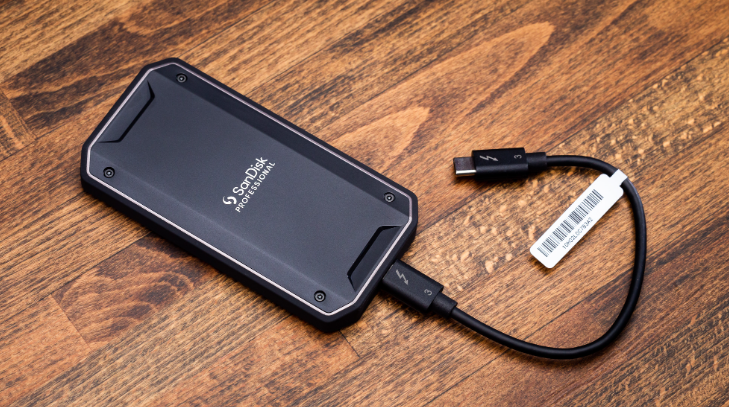

In today’s fast-paced digital world, data storage and quick file access are more important than ever. That’s where an external ssd drive comes in as a portable storage device that offers lightning-fast speeds, reliability, and convenience compared to traditional hard drives.
Whether you’re a gamer, content creator, or everyday user, an external SSD drive can help you store large files, back up important data, and transfer content in seconds. In this post, we’ll dive into what an external SSD drive is, how it works, and why it might be the perfect solution for your storage needs.
What is an External SSD Drive
An external SSD is a solid-state drive that connects to your computer from the outside, usually via USB or Thunderbolt. It works like an internal SSD but isn’t installed inside your device. External SSDs are faster and more durable than traditional hard drives, and they’re portable, making it easy to store and transfer large files between computers.
How External SSDs Work
- Flash Memory Storage: Data is stored on NAND flash memory, which keeps information even when the drive is powered off. With no moving parts, SSDs offer faster access and less risk of mechanical failure.
- Controller and Firmware: The SSD’s controller manages data reading and writing, balances usage across memory, fixes errors, and cleans up unused space. Firmware ensures efficiency and longevity.
- Interface and Connectivity: External SSDs connect via USB, Thunderbolt, or eSATA. Modern drives typically use USB 3.2 Gen2 or Thunderbolt 3 for fast data transfer.
- Enclosure and Power: Drives are housed in protective cases that dissipate heat. Most get power directly from the data connection, making them convenient for portable use.
Common Uses
- Data Backup: External SSDs let you securely save important files such as documents, photos, and videos. If your laptop fails or is lost, you can quickly recover your data. They’re also much faster than traditional hard drives for backing up large files.
- Media Storage: External SSDs provide fast access to large files such as 4K videos, high-resolution photos, or big music libraries. This speed lets you open, edit, and transfer files quickly, making them ideal for content creators and anyone working with large media.
- Gaming: Running games directly from an external SSD gives you faster loading times, smoother performance, and frees up space on your laptop’s internal drive. It’s a great option for gamers who want both speed and portability.
- Professional Work: Photographers, videographers, and designers often deal with huge files. External SSDs let you work on projects directly from the drive, edit high-resolution files smoothly, and easily move files between devices.
External SSDs are fast, durable, and portable, making them a reliable solution for anyone who needs high-performance storage on the go.
Why External SSDs Are Great for Laptop Users
Faster Data Transfer
External SSDs are much faster than traditional hard drives, up to 16 times quicker. For example, an external hard drive (HDD) transfers data at around 250 MB/s, while an external SSD using USB4 or Thunderbolt 3 can reach speeds of up to 4000 MB/s. This makes copying or opening large files like videos, games, or software almost instant, which is perfect for media professionals and gamers.
Improved Laptop Performance
An external SSD frees up space on your laptop’s internal drive, helping it run faster and smoothly. You can also run programs directly from the SSD, which is especially helpful for handling large files, editing high-resolution images, or compiling demanding projects.
Portability and Convenience
External SSDs are small and light, making them easy to carry in a bag, pocket, or jacket. They’re ideal for students, professionals, or photographers who need quick access to large files while traveling or working on the go.
Reliability and Durability
SSDs are more durable than HDDs because they have no moving parts. They can withstand minor drops, shocks, and vibrations, making them a dependable option for users who travel or work in different locations.
See also: Wellhealthorganic.com:if-you-are-troubled-by-snoring-then-know
How to Choose the Right External SSD for Your Laptop
When choosing an external SSD, think about these main points:
Storage Size
Choose based on what you store:
- Basic use (documents, photos): 250GB–500GB is enough.
- Lots of media (videos, music, photo editing): 500GB–1TB works well.
- Professional use (video editing, gaming, programming): 1TB or more is best for big files.
Connection Type
The connection affects speed. USB 3.2 Gen2 is good for most users. Thunderbolt 3 is faster (up to 40 Gbps) but only works if your laptop has a Thunderbolt port. Check your laptop before buying.
Price
Faster drives like Thunderbolt SSDs cost more. A 1TB USB 3.2 Gen2 SSD is a good balance of speed and price for most users. Professionals who need top speed can choose Thunderbolt SSDs.
Extra Features
Consider extras that suit your needs:
- Durable: Look for waterproof or shockproof designs if you travel a lot.
- Secure: Some SSDs have hardware encryption to protect sensitive files.
Boost Your Laptop with an External SSD
An external SSD enhances your laptop by providing faster, more efficient performance, not just extra storage. Here’s how it makes a difference:
- Faster Data Transfer – External SSDs use flash memory and modern connections like USB 3.2 Gen2 or Thunderbolt 3, making them up to 10 times faster than traditional hard drives. This allows you to quickly copy, open, or transfer large files such as videos, high-resolution photos, or software.
- Better Laptop Performance – By moving large files or running applications directly from the external SSD, you reduce the load on your laptop’s internal drive. This prevents slowdowns, helps maintain system responsiveness, and allows your laptop to handle heavier tasks more efficiently.
- Portability – External SSDs are compact and lightweight, making them easy to carry between classes, offices, or client meetings. You can have fast storage wherever you go without worrying about space or weight.
- Reliability and Durability – With no moving parts, external SSDs are less prone to damage from drops or bumps. This makes them a safe and dependable way to store important files, even while traveling.
- Ideal for Demanding Tasks – Students, creatives, and professionals benefit the most. Editing videos, designing graphics, running virtual machines, or playing games can all be smoother when using an external SSD.
An external SSD enhances your laptop’s speed, reliability, and portability, delivering smoother performance and faster access to your files.
Tips for Maintaining and Maximizing Your External SSD
Safely Eject Before Unplugging
Always use your laptop’s “Eject” option before unplugging the SSD. This ensures all data is saved properly and prevents file corruption or damage.
Limit Unnecessary Writes
SSDs can only handle a certain number of writes before they start to wear out. To keep your drive lasting longer, avoid constantly saving or moving unimportant files.
Keep It Cool
Protect your SSD from direct sunlight and high temperatures. Make sure it has proper ventilation, as overheating can reduce performance and shorten the drive’s lifespan.
Update Firmware and Drivers
Regularly check for firmware updates from your SSD manufacturer and keep your laptop’s drivers up to date. These updates help improve performance, fix bugs, and ensure the SSD works smoothly with your system.
Organize Your Data
Keep your SSD efficient by deleting unnecessary files and leaving 10–20% of free space. This helps the drive run faster and reduces wear on its memory cells, extending its lifespan. Keep your SSD efficient by deleting unnecessary files and leaving 10–20% of free space. This helps the drive run faster and reduces wear on its memory cells, extending its lifespan.
Following these tips will help your external SSD stay fast, reliable, and long-lasting.